To add text copy to your WordPress pages and blog posts, when using the classic editor, follow these simple rules:
ADD TEXT TO PAGES
- Go to the Admin area, normally: /wp-admin and enter your user and password
- On the left menu go to: Pages to access all the pages
- Select the page that you want to modify. Alternatively click “Add Page” button to create a new page
- Modify the text copy
- Click on “Update” blue button on the right
Same would be for Blog Posts (> Posts) if you have a Blog and Shop Products (> Products) if you have a Shop.
✅ Headings
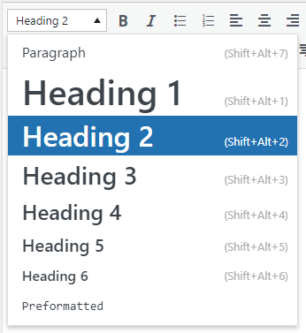
If you need to use headings to diferenciate sections, use consecutive and descendant headings starting with h2, like: h2, h3, h4… do not use h1 as this heading is already being used as the title of the page:
✅ Paragraph and Line Break
To create a new paragraph, simply put the cursor at the end of a line and press the Enter key. To create a simple line break, press Shift and Enter keys.
✅ Links
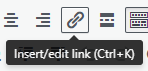
To add links to text, select a piece of text and click the “chain” button:
⚠️ Copy and Paste text
If you copy and paste text from other sources, be careful not to bring the format of the text when pasting it, as the resulting layout may be unpredictable. Use the keyboard shortcut Ctrl + Shift + V to paste unformatted text.
⚠️ Styles
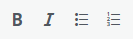
Do not add inline styles such as: font sizes or colours as this will change the consistence in design with other pages. Add only: Bold, Italics and Lists by selecting a piece of text and clicking on the appropiate button:
⚠️ Alignments
To avoid inline styles do not use aligments buttons unless extremely necessary. For better readability do not use right aligments:

❌ Shortcodes
Do not remove shortcodes between brackets such as for example: [buttons], [subpage] or [rows]
❌ Read more tags
Do not remove “read more” tags lines that display – – – MORE – – – in the editor area. This is a tool that shortens a page or a blog post text. It is normally used to show the text before this tag in list pages.
ABOUT THE TEXT COPY
- Amount: Google indexes your pages using the text copy in your pages, so each page must have a good amount of text to be indexed correctly by Google.
- Original: The text must be original and not copied from other websites as Google penalises for this type of practice.
- Contents: For each Page, create some Search Phrases (that are most likely to be used by people to find each page) mixing Theme Keywords (specific) and Niche of Keywords (generic) then write the text of your pages using these Search phrases and use them in your headings and text copy. Create human readable meaninful and helpful text for your pages.
ABOUT THE IMAGES
- Copyright: You must own the copyright for the images used on the website or you can purchase them online or you can get them copyright free.
- Sending: Images submitted from social media platforms or WhatsApp are reduced in size, so it is recommended to ask for the original images to be sent via email.
- Orientation: For web pages it is better to use landscape orientation rather than portrait.
- Dimensions: For image banners at the top of the page use a minimum width of 1600 pixels. For other images use a minimum width of 1000 pixels. The system should automatically resize the images depending on their placement.
- Names: Name your images using the description of what they represent and use only these characters: lowercase alphabets, numbers and do not use special characters or spaces, use dashes instead. The system should create the alt tags for the images automatically.
- Format: Use JPG for photos with 50% to 60% compression and PNG for logos.
QUICK TEXT-ONLY CONTENT BACKUP (no images)
Go to: Tools > Export > Select “All content” > Click on “Download Export File” button > Keep safe the downloaded XML file. This file only has a backup of all the text contents without the the images.